The BEST File Manager for Windows
Works with and greatly enhances:
Windows 11, 10
Windows 8, 7, Vista, XP
Servers 2003 and later
Starting at just $50 for home use and $69 for a business license (and a business two-pack for just $99!)
What's New / What's Up
Version 4: the future
Major new tools, significant upgrades to current components and faster folder listings.
- Find and rename problem files: bad paths, illegal characters, Linux & iOS (Mac) characters.
- Check files and folders for compliance with different file systems e.g., NTFS, Fat-16, Fat-32, eFat, CDs, iOS, Linux and custom.
Know if the files are right before you copy. - Delete files no matter their length or how they are named.
- Powerful renaming with RegEx e.g. change 'Romeo Smith' into 'Smith, Romeo' and much more.
- Lightening fast directory listing no matter how large the folder.
- Detailed reports for copy errors.
- Variable text size for views and dialogs.
- and many more improvements and fixes..
See the V4 preview here.
Update May 2017
A May 2017 Microsft security update for Windows 10 conflicted with a major routine in FileBoss resulting in FileBoss not starting on some Windows 10 systems.
Versions V3.101 and later, fix the problem. You can read more about this at the page
Windows Creators Conflict.
Advanced Searching
Advanced SearchingAdvanced searching combines all the options of the other, more specialized search routines and adds templates. While this routine can be convenient it is usually easier to use one of the specialized Find routines that are on the same menu. Links to the simple but powerful specialized find routines are on the right. Open the Advanced Search dialog
Click image for full size view
Hint: You can limit your search (and thus speed it up and make its results more meaningful) by specifying one or more folders to search instead of just a whole drive. You can also, in the Patterns field, specify only certain files to search file such as *.doc ; *.jpg ; *.jpeg ; *.html ; *.htm.
Advanced options for finding filesSaving & Using Templates
To save the current settings as a named template click the Template button. To use a template simply select it from the drop down list (click the down arrow to the left of the field). Searching for TextSpecifies text which must be in a file in order for it to be included in the file set. Text searches in FileBoss can be very simple or very sophisticated depending on your needs. Text SearchWhen checked text search is active. SetOpens a dialog where you can define what text to search for and how the search should be conducted. The options range from a simple search to sophisticated expression searching. Including Files by Attributes
|
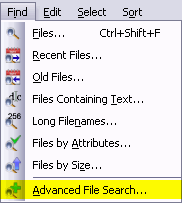 Select Find > Advanced File Search... or (Alt+A,Z) from the main menu to open the dialog where you can specify exactly which files you want to find.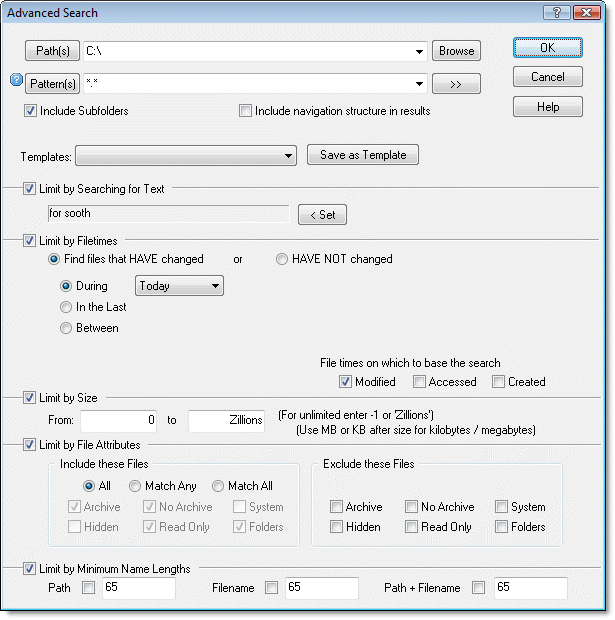
 Templates allow you to save the current settings in the dialog as a named group that can be selected and reused later. (FileBoss stores and remembers the Templates even when the program is closed.)
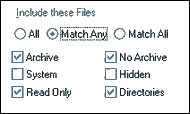 All
All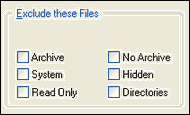 Select any file attributes for files that you want FileBoss to exclude from the search.
 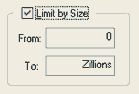 When Limit by Size is checked FileBoss will only include files that fall between the From and To sizes, inclusive. Make both entries the same to only return files of a specific size.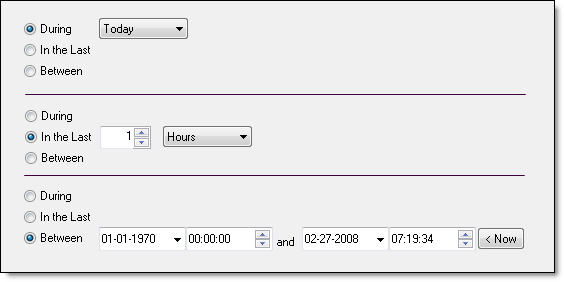




 What do you need to do today?