The BEST File Manager for Windows
Works with and greatly enhances:
Windows 11, 10
Windows 8, 7, Vista, XP
Servers 2003 and later
Starting at just $50 for home use and $69 for a business license (and a business two-pack for just $99!)
What's New / What's Up
Version 4: the future
Major new tools, significant upgrades to current components and faster folder listings.
- Find and rename problem files: bad paths, illegal characters, Linux & iOS (Mac) characters.
- Check files and folders for compliance with different file systems e.g., NTFS, Fat-16, Fat-32, eFat, CDs, iOS, Linux and custom.
Know if the files are right before you copy. - Delete files no matter their length or how they are named.
- Powerful renaming with RegEx e.g. change 'Romeo Smith' into 'Smith, Romeo' and much more.
- Lightening fast directory listing no matter how large the folder.
- Detailed reports for copy errors.
- Variable text size for views and dialogs.
- and many more improvements and fixes..
See the V4 preview here.
Update May 2017
A May 2017 Microsft security update for Windows 10 conflicted with a major routine in FileBoss resulting in FileBoss not starting on some Windows 10 systems.
Versions V3.101 and later, fix the problem. You can read more about this at the page
Windows Creators Conflict.
Text Search
To Search for text in Files
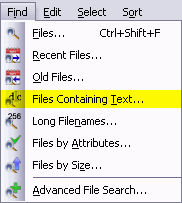 Specify what you want to find
- Select Find | File Containing Text... or (Alt+I,T) from the main menu to open the dialog where you can specify exactly which files you want to find.
- If one or more folders are selected they will be automatically entered into the Paths filed of the dialog when it opens
- FileBoss remembers what has been searched in the past even when it has been closed and then started again so you can always select a previous entry using the drop down list.
Click Image for larger view
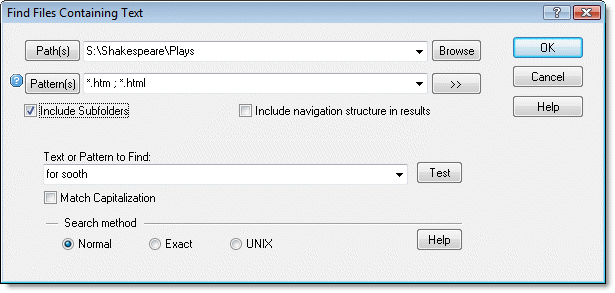
- Select the drives or paths you want to check. Multiple paths are separated with the semi-colon (;), comma (,) or bar character (|). You can even specify folders to exclude by preceding the name with a minus sign. For complete details right-click the field in the program.
- Then enter the type of search and the text or pattern you want to find.
- Click OK to search and create a Virtual Folder of all matching files
In the above example FileBoss will find all htm and html files in the Hamlet and Macbeth folders on drive S for for sooth.
Hint: You can limit your search (and thus speed it up and make its results more meaningful) by specifying one or more folders to search instead of just a whole drive. You can also, in the Patterns field, specify only certain files to search file such as *.doc ; *.jpg ; *.jpeg ; *.html ; *.htm.
More about entering multiple paths and patterns


Both the paths and file patterns fields can accept either simple entries, e.g.
C\Data\My Data and *.bmp or very complex strings that specify not only what to include but also what to exclude from a, most typically, search.
For instance both can specify multiple objects such as
C\Data\My Data ; D:\Backup\MyData
and
*.bmp ; *.gif ; *.png ; *.jpeg ; *.jpg
For a complete description of these fields either right-click the mouse over the fields for context help from within FileBoss or see Advanced Paths & Patterns.
More about Finding Text in Files
Exact Match Searching
finds files with the exact text (except for white space) you specify, with optional case matching. All white space is treated the same and multiple white space characters are treated as one.
Normal Searching
Normal Searching allows the use of the question mark (?) and asterisk (*) to match one and one or more characters respectively. All white space is treated the same and multiple white space characters are treated as one.
RegEx Searches
RegEx mode uses a basic set of Unix style regular expressions.
All Searches are Binary
FileBoss will search for text correctly in DLLs, EXE and other binary file types as well as in text and document files.
Search a drive, path or multiple drives and paths
Such as C:\ | \\Corp-backup\C\Accounting
Exclude specific folders or paths
C:\ | -Windows | -Program Files would exclude the folders Windows and Program Files and all their subfolders
Restrict to specific file types and patterns
*.doc | *.rtf would check only files with names ending in doc or rtf.
Exclude specific patterns
-*.bak | -*.tmp | -~* search for all files except those that have the extension bak, tmp or that start with the tilde character.
Uses the power of File Sets
The results of the search are put into a File Set so that the found files can be manipulated individually, in groups or all together (copy, rename, delete, move and more).
Save searches for later use
So the search can be used over and over again.

 What do you need to do today?