The BEST File Manager for Windows
Works with and greatly enhances:
Windows 11, 10
Windows 8, 7, Vista, XP
Servers 2003 and later
Starting at just $50 for home use and $69 for a business license (and a business two-pack for just $99!)
What's New / What's Up
Version 4: the future
Major new tools, significant upgrades to current components and faster folder listings.
- Find and rename problem files: bad paths, illegal characters, Linux & iOS (Mac) characters.
- Check files and folders for compliance with different file systems e.g., NTFS, Fat-16, Fat-32, eFat, CDs, iOS, Linux and custom.
Know if the files are right before you copy. - Delete files no matter their length or how they are named.
- Powerful renaming with RegEx e.g. change 'Romeo Smith' into 'Smith, Romeo' and much more.
- Lightening fast directory listing no matter how large the folder.
- Detailed reports for copy errors.
- Variable text size for views and dialogs.
- and many more improvements and fixes..
See the V4 preview here.
Update May 2017
A May 2017 Microsft security update for Windows 10 conflicted with a major routine in FileBoss resulting in FileBoss not starting on some Windows 10 systems.
Versions V3.101 and later, fix the problem. You can read more about this at the page
Windows Creators Conflict.
Finding & Using 1,000s of Files
Find the files you need
FileBoss has dedicated search routines and an advanced / general search routine so that you can find the files you need quickly and accurately. From finding files by that have specific extensions or name formats to finding old files, recent files and even files that have troublesome long file names FileBoss can find the files you want. (And when finding old or recent files you can use absolute dates or FileBoss's new relative time system, i.e. find all files that changed today, or find all files that haven't changed in the past six months.
Not only can FileBoss find files you need but once it has found them you can work with them almost exactly as if they were in a normal folder.
FileBoss places the results in a Virtual folder from which you can use all of FileBoss's tools to copy, rename, delete, concatenate, clean or whatever else you need to do with them.
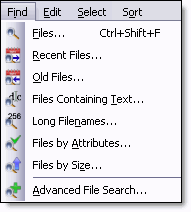 Do you need to find files that
Were modified, created or accessed?
The Find Recent Files routine lets you quickly find files using either relative (e.g. today, in last 12 hours) or absolute times (e.g. between 1 March 2012 and 31 March 2012).
See:
Finding Modified Files
Are older than six months?
The Find Old Files routine lets you quickly find files that have not been accessed (or modified or created) using either relative (e.g. today, in last 12 hours) or absolute times (e.g. between 1 March 2012 and 31 March 2012).
See:
Finding Old Files
Have bak, tmp, or temp extensions?
You can locate files by one or more file patterns such as *.jpg ; *.jpeg ; *.gif.
Just separate each pattern with a semi-colon. And the patterns aren't just limited to listing extensions you can also specify text in the middle of the file names, e.g. *FileBoss is Great*.doc. It can be as simple or precise as you need.
See:
Find Files by Name
Have names longer than 260 characters or any length you specify?
It is easy to find files and / or folders that have names, paths or names and paths that are too long. Just specify the minimum lengths an entry must have and FileBoss will return all files and folders that exceed those lengths.
See:
Find Long Filenames and Paths using FileBoss
Contain specific text strings (or patterns)?
It is easy to find files containing specific text. You can search by exact match, with wild cards and even the advanced Regular Expression syntax.
See:
Finding Text in Files with FileBoss
Are bigger than 65,000 bytes or that are empty?
It is easy to find files and / or folders that have names, paths or names and paths that are too long. Just specify the minimum lengths an entry must have and FileBoss will return all files and folders that exceed those lengths.
See:
Find Files Based on their Size
Have been modified since last backed up?
It is easy to find files and / or folders that have names, paths or names and paths that are too long. Just specify the minimum lengths an entry must have and FileBoss will return all files and folders that exceed those lengths.
See:
Find Files by Attributes
Have specified NTFS attributes?
It is easy to find files and / or folders that have names, paths or names and paths that are too long. Just specify the minimum lengths an entry must have and FileBoss will return all files and folders that exceed those lengths.
See:
Find Files by NTFS Attributes
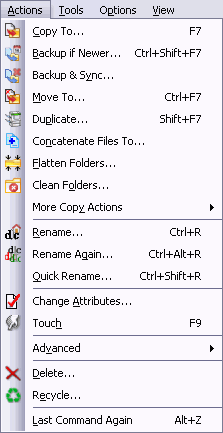 After you have found the files you can
-
Copy or move them somewhere else
-
Delete them
-
Rename them
-
Add a date to their names
-
Make duplicates
-
Export the file list for a report
-
Capture the information in a spread sheet
-
Save the results so you can work on them later
More about search Results and using Virtual Folders
Virtual Folders are easily saved to disk
for later recall. A Virtual Folder can be saved as a definition so that when it is reopened it will automatically scan for files or it can be saved as a full Virtual Folder where all the entries in the Virtual Folder can be quickly restored without reference to what is actually on disk.
Virtual Folders are simple to edit
entries in a Virtual Folder can be removed so that the trees can be seen instead of the forest.
Multiple Virtual Folders
can be active at same time - limited only by your computer's memory.
Persistency
whether explicitly saved to disk or not Virtual Folders that were open when FileBoss last closed are automatically reopened when FileBoss is next started. (Naturally this can be turned off and on at your discretion.)
Shifting back and forth between Virtual Folders and Explore Views
is simple: just right-click on a folder and select the 'Explore Folder in New Window' option. Or, after right-clicking on a folder, select 'Create Virtual Folder from Folder' to start another, more specific Virtual Folder. (Note that both of these commands are available in any FileBoss window as long as the folder belongs to the file System (not a virtual folder such as My Computer or My Network.)
Note: Virtual Folder Views have a different color for their left pane than Explore Views. This is just to make it easier to know which is which. The colors used can, of course, be changed in the Options > Program Options... dialog.

 What do you need to do today?