The BEST File Manager for Windows
Works with and greatly enhances:
Windows 11, 10
Windows 8, 7, Vista, XP
Servers 2003 and later
Starting at just $50 for home use and $69 for a business license (and a business two-pack for just $99!)
What's New / What's Up
Version 4: the future
Major new tools, significant upgrades to current components and faster folder listings.
- Find and rename problem files: bad paths, illegal characters, Linux & iOS (Mac) characters.
- Check files and folders for compliance with different file systems e.g., NTFS, Fat-16, Fat-32, eFat, CDs, iOS, Linux and custom.
Know if the files are right before you copy. - Delete files no matter their length or how they are named.
- Powerful renaming with RegEx e.g. change 'Romeo Smith' into 'Smith, Romeo' and much more.
- Lightening fast directory listing no matter how large the folder.
- Detailed reports for copy errors.
- Variable text size for views and dialogs.
- and many more improvements and fixes..
See the V4 preview here.
Update May 2017
A May 2017 Microsft security update for Windows 10 conflicted with a major routine in FileBoss resulting in FileBoss not starting on some Windows 10 systems.
Versions V3.101 and later, fix the problem. You can read more about this at the page
Windows Creators Conflict.
Entering Paths & Patterns
Overview
Most any dialog that require folder paths or file patterns can accept either simple entries, e.g.
C\Data\My Data
and
*.bmp
or very complex strings that specify not only what to include but also what to exclude from a, most typically, search.
This page describes the complete description of how to use these fields to their full advantage.
Paths Field

Specifies one or more paths to be scanned. For instance to scan the My Documents directory on drive C: enter:
C:\My Documents
(Note: if you are comparing folders either from the Compare Folders or Paths dialog or directly in the Create File Set dialog two and only two paths must be entered in this field)
Including Multiple Paths
Select the drives or paths you want to check. Multiple paths are separated with the semi-colon (;), comma (,) or bar character (|). You can even specify folders to exclude by preceding the name with a minus sign. For complete details right-click the field in the program.
To scan the My Documents directory on drive C: and the Temp directory on drive D: enter:
C:\My Documents ; D:\Temp
(The maximum length of this field is over 30,000 bytes.)
Using Wildcards
If you would like to collect files on all of drive D: and in the My Documents and My Installations folders on drive C: enter the following.
D:\ ; C:\My *s
(Of course, the entry C:\My * would search all folders in the root of drive C: which began with My then a space and end with an s.)
The use of a wild card is restricted to the last element of the path. For instance, the following examples will not work:
D:\*\Backup
C:\My *\*
C:\Program Files\Iront*\FileBoss
But the following will work:
C:\My *s
(It would return files in folders C:\My Videos and C:\My Pictures if present.)
To search both the Normal and Nermal directories on drive D: you could enter either:
D:\Normal ; D:\Nermal
or
D:\N?rmal
Excluding Folders
Specific folders can be excluded from the search by preceding the folder's name with a minus sign, '-'. If the name of the folder actually begins with a minus sign, simply put another in front of it, e.g. "--my folder".`
Consider the following example:
C:\My Documents ;-Temp ;-Backup ; D:\
Paths to be excluded can contain the normal wildcard characters, * and ?. (Use full paths, e.g. C:\house\pictures) to avoid excluding all paths, e.g. every folder named 'pictures'. This can be especially important when using wildcards.)
Note that the order of the entries is ignored: in the above example any Temp and Backup folders will be ignored on drive D: as well in C:\My Documents
Using Wildcards in Folders to be Excluded
Using wildcards in folders to be excluded is almost exactly the same as it is to use them in paths to be scanned. For instance:
C:\|-C:\C*s
Would search all of drive C: except for files and folders in and below any root folders beginning with a 'C' and ending in 's'.
Specifying File & Folder Patterns

Enter the names or name patterns of files and folders you want included in the search.
Leaving the field empty is the same as specifying a single asterisk '*' or the traditional '*.*' meaning include all files.
Multiple File Patterns
Separate multiple patterns with the bar character '|'.
Wildcards in File Patterns
The common wildcard characters '*' and '?' can be used when specifying groups of file to be included.
The entry *.tmp | *.bak | ~* will find all files with the extension tmp and bak as well as all files beginning with the tilde character '~'.
Excluding Files and Groups of Files
Specific files and groups of files can be excluded from the search by preceding the files with a minus sign, '-'. If the name actually begins with a minus sign, simply put another in front of it, e.g. "--notations.txt".
To create a File Set that includes all files except temporary and backup files you could enter
-*.tmp | -*.bak | -~*
(Note that there is no *.* or just * in the beginning. Remember that if there is no include specification then *.* (all) is assumed.
For example the these two patterns are equivalent: -*.zip and *.* | -*.zip (include all files except those with the zip extension).
User Defined & Default Patterns
While the drop down list box will remember the most recently used patterns, even when FileBoss is closed, you can use predefined
Predefined Patterns
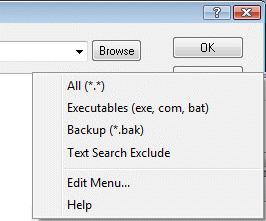
Displays a pop up menu of predefined file patterns that can be quickly added to the 'Patterns' field to the left.
You can edit this drop down menu to include the file patterns you use the most (use the 'Edit Menu' option at the bottom.)
The patterns fly out can hold up to a maximum of twenty entries.
Edit
Allows you to edit the contents of the Patterns: drop-down list box.

 What do you need to do today?