The BEST File Manager for Windows
Works with and greatly enhances:
Windows 11, 10
Windows 8, 7, Vista, XP
Servers 2003 and later
Starting at just $50 for home use and $69 for a business license (and a business two-pack for just $99!)
What's New / What's Up
Version 4: the future
Major new tools, significant upgrades to current components and faster folder listings.
- Find and rename problem files: bad paths, illegal characters, Linux & iOS (Mac) characters.
- Check files and folders for compliance with different file systems e.g., NTFS, Fat-16, Fat-32, eFat, CDs, iOS, Linux and custom.
Know if the files are right before you copy. - Delete files no matter their length or how they are named.
- Powerful renaming with RegEx e.g. change 'Romeo Smith' into 'Smith, Romeo' and much more.
- Lightening fast directory listing no matter how large the folder.
- Detailed reports for copy errors.
- Variable text size for views and dialogs.
- and many more improvements and fixes..
See the V4 preview here.
Update May 2017
A May 2017 Microsft security update for Windows 10 conflicted with a major routine in FileBoss resulting in FileBoss not starting on some Windows 10 systems.
Versions V3.101 and later, fix the problem. You can read more about this at the page
Windows Creators Conflict.
Add Text to Filenames
FileBoss makes simple work of renaming files
Whether you want to add sequential numbers, change case, change extensions, remove or convert spaces, add folder names or each file's time to its name FileBoss has a quick and easy routine for doing so. And whether you are renaming files just a few at a time or batch rename by the thousands the routines work exactly the same.
How to add text to filenames
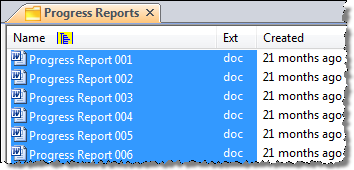
1) Select the files you want to rename using file times
In the following example we have selected fifteen jpeg files that have just been imported from a digital camera.
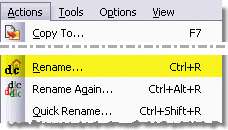
2) Select Actions > Rename... from the main menu
3) Select the Add to Filename
The display below shows all the tabs used for renaming files. It is important to remember that when the OK button is pressed only the settings in the current tab - in this case the Advanced tab - will be used to rename the files.
Click image for larger view
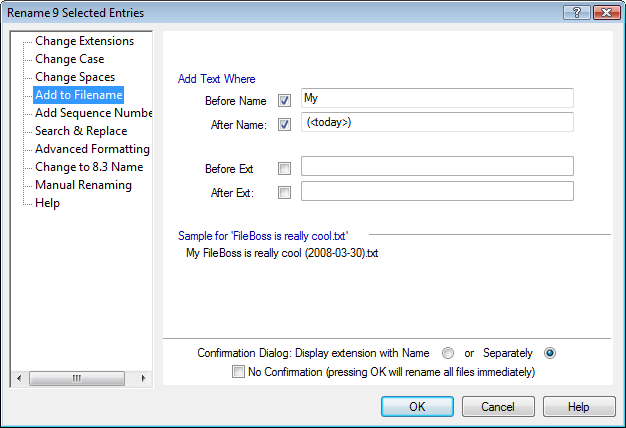
1) Click on the Add to Filename tab it is not already selected.
2) Enter the text you want to add in the appropriate places. Make sure the correct check boxes marked for the location(s) you want to add the text,.
4) The sample format the will change as you change the options in the dialog. It gives immediate feedback as to what the renamed files will be.
The above fragment of the Advanced tab only shows the details needed for adding file times to filenames. There are other codes and options in the Advanced rename tab giving complete control over adding sequence numbers and file times when renaming files.
4) Confirm the renamed files
After pressing the OK button in the above step, FileBoss will find the first file to be renamed and display a confirmation dialog similar to the one below.
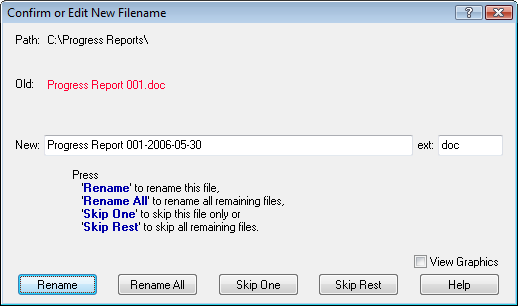
You can continue to rename or skip each file individually or at any time you can Rename All the rest of the files or Skip Rest thus ending the renaming.
Note that you can edit the new name anyway you like and then press the Rename button giving you total control over how the file is named.
5) See the results
When FileBoss has finished renaming the files the new names will appear immediately in the Contents window.

 What do you need to do today?