The BEST File Manager for Windows
Works with and greatly enhances:
Windows 11, 10
Windows 8, 7, Vista, XP
Servers 2003 and later
Starting at just $50 for home use and $69 for a business license (and a business two-pack for just $99!)
What's New / What's Up
Version 4: the future
Major new tools, significant upgrades to current components and faster folder listings.
- Find and rename problem files: bad paths, illegal characters, Linux & iOS (Mac) characters.
- Check files and folders for compliance with different file systems e.g., NTFS, Fat-16, Fat-32, eFat, CDs, iOS, Linux and custom.
Know if the files are right before you copy. - Delete files no matter their length or how they are named.
- Powerful renaming with RegEx e.g. change 'Romeo Smith' into 'Smith, Romeo' and much more.
- Lightening fast directory listing no matter how large the folder.
- Detailed reports for copy errors.
- Variable text size for views and dialogs.
- and many more improvements and fixes..
See the V4 preview here.
Update May 2017
A May 2017 Microsft security update for Windows 10 conflicted with a major routine in FileBoss resulting in FileBoss not starting on some Windows 10 systems.
Versions V3.101 and later, fix the problem. You can read more about this at the page
Windows Creators Conflict.
Renaming Files: Overview
Select, Click, Rename
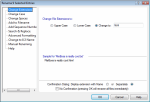
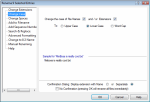
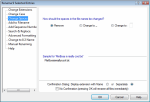
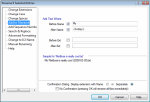
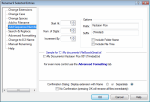
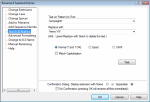
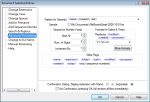
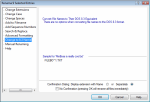
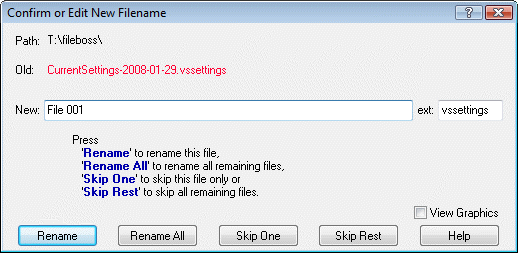
To rename selected files and folders press Actions › Rename....Then select the appropriate tab for how you want to rename your files. After pressing OK, each file will be presented for confirmation (though at any time you can press Rename All to have FileBoss rename the rest of the files immediately).
|
Click on any image for complete details |
|||
|
Change Extensions |
Change Case |
Change Spaces |
Add Text |
 |
 |
 |
 |
|
Sequentially |
Search & Replace |
Advanced |
DOS 8.3 |
 |
 |
 |
 |
The Confirmation Dialog
Note that unlike most rename dialogs FileBoss uses two fields for the filename: one for the main name and one for the extension. This makes it much easier to change part of the main name without having to worry about accidentally changing the extension.
But if you would rather have both together simply set the Confirmation Dialog: Display Extension with Name option that is near the bottom of all the above rename panels

 What do you need to do today?