The BEST File Manager for Windows
Works with and greatly enhances:
Windows 11, 10
Windows 8, 7, Vista, XP
Servers 2003 and later
Starting at just $50 for home use and $69 for a business license (and a business two-pack for just $99!)
What's New / What's Up
Version 4: the future
Major new tools, significant upgrades to current components and faster folder listings.
- Find and rename problem files: bad paths, illegal characters, Linux & iOS (Mac) characters.
- Check files and folders for compliance with different file systems e.g., NTFS, Fat-16, Fat-32, eFat, CDs, iOS, Linux and custom.
Know if the files are right before you copy. - Delete files no matter their length or how they are named.
- Powerful renaming with RegEx e.g. change 'Romeo Smith' into 'Smith, Romeo' and much more.
- Lightening fast directory listing no matter how large the folder.
- Detailed reports for copy errors.
- Variable text size for views and dialogs.
- and many more improvements and fixes..
See the V4 preview here.
Update May 2017
A May 2017 Microsft security update for Windows 10 conflicted with a major routine in FileBoss resulting in FileBoss not starting on some Windows 10 systems.
Versions V3.101 and later, fix the problem. You can read more about this at the page
Windows Creators Conflict.
Copy Files with Total Control
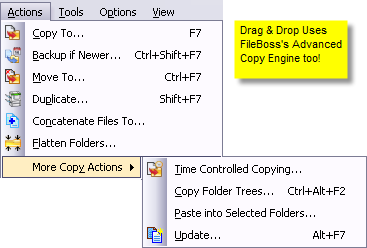
To Backup, Copy Files or Move Files
And don't forget that this is in addition to FileBoss's sophisticated extensions to Drag & Drop, FileBoss's unique Drop Targets, Updating, Quick Merging and so much more.
General Features and Options of Copying Files
Simple and Advanced Copy File Command Modes
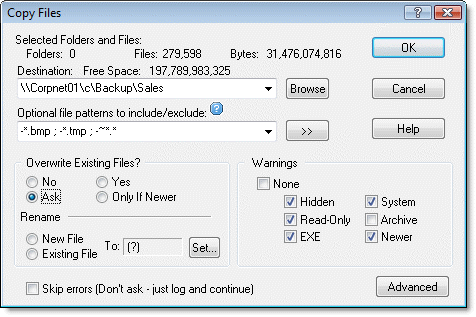
Simple File Copy Optional File patterns to include/excludeIn the above example all files would be copied except those with bak and tmp extensions and those with names starting with a tilde (~). Separate multiple patterns with semi-colons, commas or bar characters ( ; , | ) and precede patterns to be excluded with a minus sign (-). If no patterns are entered all is assumed (i.e. leaving the field blank is the same as entering a * or the traditional *.*). Note that these patterns only affect file in subfolders. Files directly selected will be copied no matter what patterns are entered. Advanced File Copy
If you want to quickly copy a bunch of files without worrying about any advanced settings just close up (or leave closed-up) the dialog by pressing the Simple button (if the dialog is already closed up the button will read Advanced). Like all other expanding dialogs in FileBoss this copy files dialog reverts to default options when it is close up. So you don't have to worry about some option being set that you can't even see. Advanced Hint: The default options for copying are can be set to your particular preferences so that when the dialog is closed up it will set the hidden options to the defaults you have specified. Entering multiple destination directoriesYou can enter as many paths as you want up to a limit of 32,000 characters.
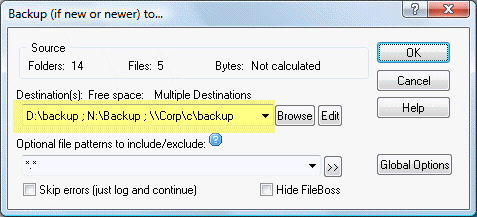
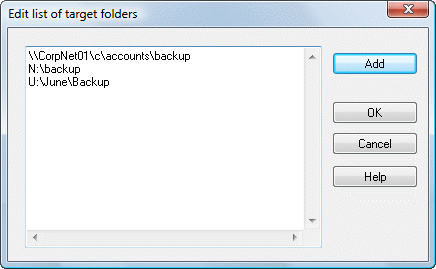
Enter the list of folders you want the selected files and / or folders in the Destination(s) field as shown highlighted in yellow above. Each path must be separated with a comma, a semi-colon or the bar character (, ; or |). To quickly enter multiple folders use the Browse button to the right of the field which will display a folder picker when you can select one or more folders that FileBoss will enter into the Destination(s) field for you. Note the Multiple Selections box near the bottom of the dialog. When it is checked you can select multiple folders. And you can always click the Edit button to bring up a dialog where you can add, edit and order the paths. This is especially handy when dealing with more than three or four paths. Edit dialog for copy to directoriesTo manage multiple directories use the Edit button to the right of the Browse button. This will allow you to edit the paths that are currently displayed.
Entering comments in the Destination fieldSometimes it is convenient to have a title for a long list of destination folders. You can enter a comment anywhere in the string (though it is normally best to put it at the beginning so that it can be seen easily in the list of directories) in the form <cmt: your text here> for example <cmt: network backup> This would make the Destination(s) field in the above dialog look something like: <cmt: network backup> D:\backup ; N:\backup ; \\Corp\c\backup Batch copyFileBoss is the ideal program to copy files in batches, in fact that is normal mode. It will copy all selected files and folders (and sub-folders) in one operation. And if the selections are from a virtual folder FileBoss can copy files and folders from different paths and even drives at the same time. Batch copy with pausesIf you need batch copying where with timed intervals between each batch check out FileBoss's Batch copy with pauses or limited speed routine. Directory versus folderTechnically Windows considers a directory to hold file system objects such as files and other directories. Folders can be directories but they can also hold non-file system objects such as list of printers or be virtual such as the Recycle Bin. Over the years the use of folder has become so common to refer to directories too that we don't make a strict distinction between a directory and a folder in the documentation since different people use one or the ohter. Display error log automaticallyWhen performing long copy operations and the Skip errors (Don't ask - log and continue) option is set FileBoss will automatically display the error history window after the operation is complete if and only if there were errors. Or click here for more details about copy and move operations
|


 What do you need to do today?