The BEST File Manager for Windows
Works with and greatly enhances:
Windows 11, 10
Windows 8, 7, Vista, XP
Servers 2003 and later
Starting at just $50 for home use and $69 for a business license (and a business two-pack for just $99!)
What's New / What's Up
Version 4: the future
Major new tools, significant upgrades to current components and faster folder listings.
- Find and rename problem files: bad paths, illegal characters, Linux & iOS (Mac) characters.
- Check files and folders for compliance with different file systems e.g., NTFS, Fat-16, Fat-32, eFat, CDs, iOS, Linux and custom.
Know if the files are right before you copy. - Delete files no matter their length or how they are named.
- Powerful renaming with RegEx e.g. change 'Romeo Smith' into 'Smith, Romeo' and much more.
- Lightening fast directory listing no matter how large the folder.
- Detailed reports for copy errors.
- Variable text size for views and dialogs.
- and many more improvements and fixes..
See the V4 preview here.
Update May 2017
A May 2017 Microsft security update for Windows 10 conflicted with a major routine in FileBoss resulting in FileBoss not starting on some Windows 10 systems.
Versions V3.101 and later, fix the problem. You can read more about this at the page
Windows Creators Conflict.
Copy to Multiple Folders
Copying to 10s, 100s, even 1,000s of folders at once
There are two ways to copy files to multiple destinations. To copy to many folders at once see the the topic Copy to Many Folders which efficiently copies files and even folders to hundreds and thousands of folders on your computer, server or network at one time.
Copying to a few folders at once
The rest of this page describes how to copy quickly copy to multiple destination by simply listing each destination in the Destination(s) field of any copy based dialog such as Copy To, Backup if Newer and Backup & Sync. (Multiple destinations can not be used with the Move To copy action.)
Entering multiple destination directories
You can enter as many paths as you want up to a limit of 32,000 characters.
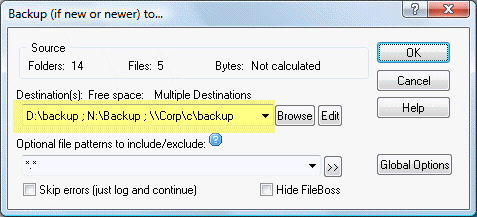
Enter the list of folders you want the selected files and / or folders in the Destination(s) field as shown highlighted in yellow above. Each path must be separated with a comma, a semi-colon or the bar character (, ; or |).
To quickly enter multiple folders use the Browse button to the right of the field which will display a folder picker when you can select one or more folders that FileBoss will enter into the Destination(s) field for you. Note the Multiple Selections box near the bottom of the dialog. When it is checked you can select multiple folders.
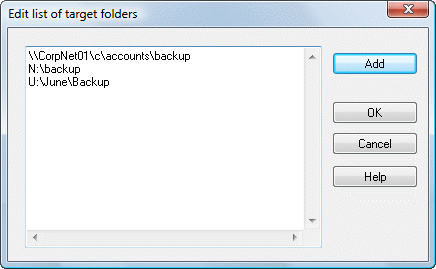
And you can always click the Edit button to bring up a dialog where you can add, edit and order the paths. This is especially handy when dealing with more than three or four paths.
Edit dialog for copy to directories
To manage multiple directories use the Edit button to the right of the Browse button. This will allow you to edit the paths that are currently displayed.
Entering comments in the Destination field
Sometimes it is convenient to have a title for a long list of destination folders. You can enter a comment anywhere in the string (though it is normally best to put it at the beginning so that it can be seen easily in the list of directories) in the form
<cmt: your text here>
for example
<cmt: network backup>
This would make the Destination(s) field in the above dialog look something like:
<cmt: network backup> D:\backup ; N:\backup ; \\Corp\c\backup

 What do you need to do today?