The BEST File Manager for Windows
Works with and greatly enhances:
Windows 11, 10
Windows 8, 7, Vista, XP
Servers 2003 and later
Starting at just $50 for home use and $69 for a business license (and a business two-pack for just $99!)
What's New / What's Up
Version 4: the future
Major new tools, significant upgrades to current components and faster folder listings.
- Find and rename problem files: bad paths, illegal characters, Linux & iOS (Mac) characters.
- Check files and folders for compliance with different file systems e.g., NTFS, Fat-16, Fat-32, eFat, CDs, iOS, Linux and custom.
Know if the files are right before you copy. - Delete files no matter their length or how they are named.
- Powerful renaming with RegEx e.g. change 'Romeo Smith' into 'Smith, Romeo' and much more.
- Lightening fast directory listing no matter how large the folder.
- Detailed reports for copy errors.
- Variable text size for views and dialogs.
- and many more improvements and fixes..
See the V4 preview here.
Update May 2017
A May 2017 Microsft security update for Windows 10 conflicted with a major routine in FileBoss resulting in FileBoss not starting on some Windows 10 systems.
Versions V3.101 and later, fix the problem. You can read more about this at the page
Windows Creators Conflict.
Internal Image Viewer
To Display the Image Viewer
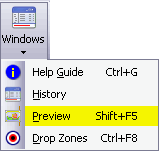 To show or hide the Viewer
- Select Window > Graphic Preview... from the main menu
- or click its tool bar menu item on the Windows Button
- or press Shift+F5
To Switch between Thumbnail and Regular Views
- Double-click anywhere in the preview window
FileBoss's Internal Image Viewer
FileBoss' viewer allows you to see the current image (as a thumbnail, full sized or zoomed) without interfering with your work. You can rename, copy, delete or perform any other file operation making these operations - and most importantly the decisions behind them - much easier.
As a docked pane
The image viewer can be docked anywhere just like the windows for the history windows, Drop Targets and Help Guide. To move it just click and drag its title bar.
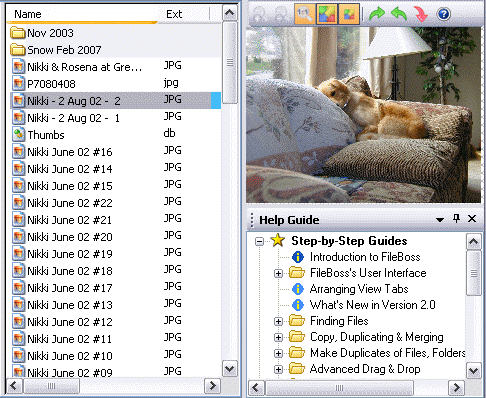
Can float on top of other windows
Double click the image viewer's title bar to undock it and make float on the desktop.
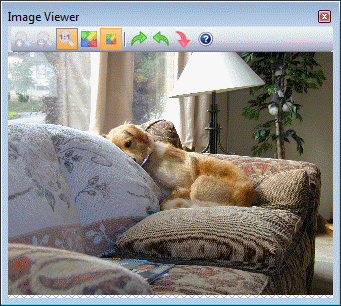
The image view floats on top of all other FileBoss windows. Put it anywhere you want and get on with your work.
And you can close and open the viewer simply by clicking its command button, pressing Shift+F5 or selecting View > Graphic Preview from the main menu.
Can rotate images and automatically save them
If you want you can quickly rotate images using the Arrow keys on the key pad while holding down the Alt key. And if you are doing many you can tell FileBoss to automatically save the changes when you move to a new picture so that you aren't constantly interrupted to confirm that the file should be saved. Naturally you can turn this option on and off.
Thumbnail, full sized or zoomed views with just two clicks
The Image view has two states: thumbnail and regular window. The thumbnail state shows the graphic sized to completely fit within the viewer. When the viewer is a regular window the graphic will be displayed normal size or zoomed to a size of your choice (see the graphic links below).
To change between the two views simply double-click the Image viewer window.
Supported Image Types
The image view supports the following types of image files (though there may be variations of some types that are not supported):
BMP, GIF, ICO, J2K, JAS, JBG, JPG, MNG, PCX, PNG, TGA, TIF, WBMP, and WMF

 What do you need to do today?