The BEST File Manager for Windows
Works with and greatly enhances:
Windows 11, 10
Windows 8, 7, Vista, XP
Servers 2003 and later
Starting at just $50 for home use and $69 for a business license (and a business two-pack for just $99!)
What's New / What's Up
Version 4: the future
Major new tools, significant upgrades to current components and faster folder listings.
- Find and rename problem files: bad paths, illegal characters, Linux & iOS (Mac) characters.
- Check files and folders for compliance with different file systems e.g., NTFS, Fat-16, Fat-32, eFat, CDs, iOS, Linux and custom.
Know if the files are right before you copy. - Delete files no matter their length or how they are named.
- Powerful renaming with RegEx e.g. change 'Romeo Smith' into 'Smith, Romeo' and much more.
- Lightening fast directory listing no matter how large the folder.
- Detailed reports for copy errors.
- Variable text size for views and dialogs.
- and many more improvements and fixes..
See the V4 preview here.
Update May 2017
A May 2017 Microsft security update for Windows 10 conflicted with a major routine in FileBoss resulting in FileBoss not starting on some Windows 10 systems.
Versions V3.101 and later, fix the problem. You can read more about this at the page
Windows Creators Conflict.
Access Drives and Folders Quickly
with FileBoss's Drive Bar
The FileBoss Drive Bar
Starting wit version 2.5 FileBoss provides a toolbar listing all the active drives. But not only does it provide quick access to the root of the drive but also to the last twenty used folders on that drive.
What is a used folder? A used folder is one in which you have spent some time - at least five seconds by default. This prevents the list of drive folders from being cluttered up with folders you just viewed briefly while on the way to the folder you wanted.

How to use
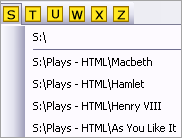 Clicking one of the buttons representing a drive displays a drop down menu from which you can select either the root of the drive (the first entry) or a folder you have recently visited.
If a folder is selected that no longer exits FileBoss will ask if you would like to remove that entry from the list of visited folders.
Dynamic drives in use
FileBoss updates the drive bar dynamically as drives are added and removed (such as flash media and USB drives) so that the drive bar is always up to date.
Displaying and hiding the Drive Bar
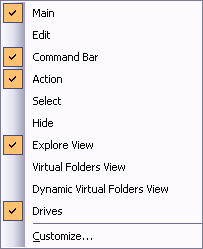 The drive bar is displayed and hidden just like any other toolbar. To do so right-click over any toolbar or empty space near a toolbar click on the name of the toolbar you want to turn off or on.
The toolbars can also be turned on and off using the Windows > Toolbars > item on the main menu.
The Drive Bar can be move to any of the four sides of the FileBoss window or even made to float anywhere on the desktop. To do so click on the gripper to the left (or top if the toolbar is aligned vertically) and drag the Drive Bar to the desired location.
If the Drive Bar is floating it can be quickly returned to its previous docked location (along one of the four sides of the main window) by double-clicking its title bar or dragging the title bar to that location.

 What do you need to do today?