The BEST File Manager for Windows
Works with and greatly enhances:
Windows 11, 10
Windows 8, 7, Vista, XP
Servers 2003 and later
Starting at just $50 for home use and $69 for a business license (and a business two-pack for just $99!)
What's New / What's Up
Version 4: the future
Major new tools, significant upgrades to current components and faster folder listings.
- Find and rename problem files: bad paths, illegal characters, Linux & iOS (Mac) characters.
- Check files and folders for compliance with different file systems e.g., NTFS, Fat-16, Fat-32, eFat, CDs, iOS, Linux and custom.
Know if the files are right before you copy. - Delete files no matter their length or how they are named.
- Powerful renaming with RegEx e.g. change 'Romeo Smith' into 'Smith, Romeo' and much more.
- Lightening fast directory listing no matter how large the folder.
- Detailed reports for copy errors.
- Variable text size for views and dialogs.
- and many more improvements and fixes..
See the V4 preview here.
Update May 2017
A May 2017 Microsft security update for Windows 10 conflicted with a major routine in FileBoss resulting in FileBoss not starting on some Windows 10 systems.
Versions V3.101 and later, fix the problem. You can read more about this at the page
Windows Creators Conflict.
Administrative Shares
frequently called Admin Shares
Administrative shares are default shares of every hard drive on a networked computer. They allow local administrators, typically System Administrators, to manage multiple computers and access drives and folders on remote computers, without having those remote drives explicitly shared.
Administrative (Admin) Shares are available on Windows versions since Windows 2000. However since they are typically only useful within organizations where computers are administered from afar, they are not available on some versions of Windows designed for use in the home, frequently called "Home editions" of Windows Vista and Windows 7.
The major differences between admin shares and normal shares are:
- They don't have to be explicitly shared.
- They don't show up in normal folder lists (until FileBoss that is) so that you have to know that they exist inorder to access them.
- They are only available for whole drives - there is no such thing as an admin share for a subfolder.
- Their designation is the original drive letter followed by a dollar sign. For example,
\\CorpServer\d$
\\CorpServer\m$\backup\accounts\daily
Administrative Shares and FileBoss
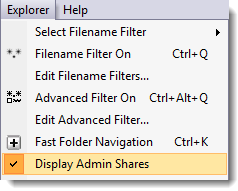 Normally, administrative shares are not displayed in file manager including Windows Explorer - you have to know they are there to use them such, as when entering the destination for copying files.
However in FileBoss you can turn on the display of admin shares in both the folder list on the left and the contents window on the right. To do this use the
View > Display Admin Shares toggle from the main menu.
Since Admin Shares are not useful for everyone, they are turned off by default.
What Admin Shares look like in FileBoss

 When turned on, Admin Shares are visible in both the list of folders on the left, and in the contents window on the right. But remember shares are only available for networked paths so they are not displayed for your local computer unless you access it via its network URL, e.g. \\server\.
Note in the graphic to the right which displays the root of a network named WIN7V. This resource has one drive explicitly shared (J:\). The default shares are for C:\, D:\, J:\, W:\, and X:\. The graphic on the left shows how the folder list will look if Explorer > Display Admin Shares is toggled off.
When are admin shares available
Admin shares must be enabled to be used on a computer.
On older versions of Windows Admin Shares are enabled by default.
On Windows Vista and Windows 7 they are disabled by default and must be enabled for other computers to see and access them.
Admin shares are not available by default on home editions of such as Windows Vista and Windows 7 and on up.
For more details on which systems admin shares are available and instructions on how to enable them see Enabling Administrative Shares.
To enable Admin Shares on Windows Vista an Windows 7 the registry has to be modified in the following manner.

 What do you need to do today?